
Facebook sign-in authentication
The Facebook OAuth sign-in function allows Odoo users to sign in to their database with their Facebook account.
Tip
Keep at least one administrator account that logs in with a password, so the database remains accessible if the OAuth provider is unavailable.
Meta for Developers setup
Go to Meta for Developers and log in. Click My Apps. On the Apps page, click Create App.
On the Use cases page, select Authenticate and request data from users with Facebook Login, then click Next.
In the Add an app name field, enter Odoo Login OAuth, or a similar title.
Note
The App contact email automatically defaults to the email address associated with the Meta account. If this email address is not regularly monitored, it may be wise to use another email address.
Click Next. Review the Publishing requirements, the Meta Platform Terms, and Developer Policies. Then, click Create app.
Important
Clicking Create app may require password re-entry.
Customize app
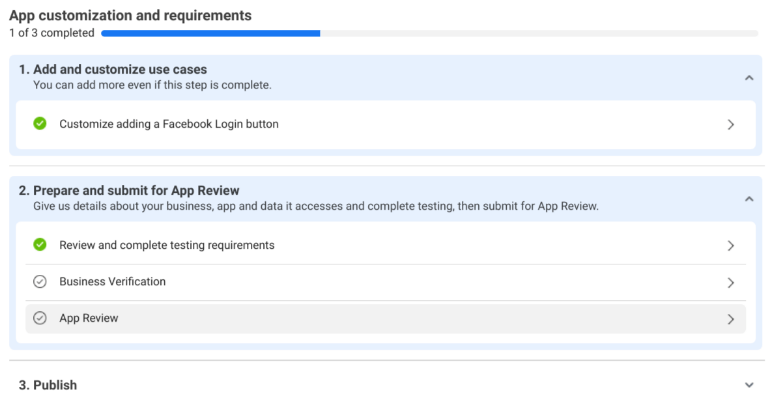
After the new app is created, the Dashboard page appears, with a list of steps to be completed before the app can be published. From here, click Customize adding a Facebook Login button.
On the Customize page, click Settings.
In the Valid OAuth Redirect URIs field, enter https://<odoo base
url>/auth_oauth/signin, replacing <odoo base url> with the URL of the applicable database.
Example
If a database has the URL https://erp.example.com, the URL
https://erp.example.com/auth_oauth/signin would be entered in the Valid OAuth
Redirect URIs field.
Click Save changes when finished.
Configure settings
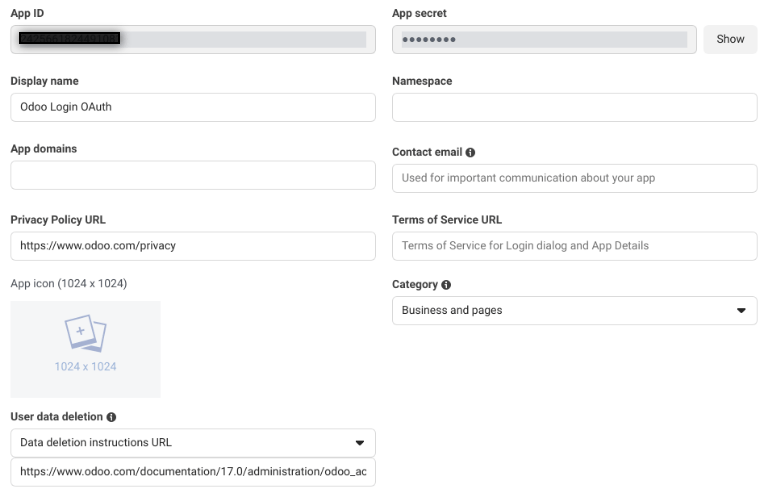
At the far left of the page, click . This page contains additional settings that are required before the app can be submitted for approval.
In the Privacy Policy URL field, enter the URL of the company’s privacy policy, e.g., the privacy policy page of the company website.
Click the App Icon field to open a file upload window. From here, select and upload an app icon.
In the User data deletion field, enter the URL of a page that explains how users can request the deletion of their data, e.g., a page of the company website.
Lastly, click the Category field, and select Business and pages from the drop-down menu.
Click Save changes.
Capture app ID
After the app is created, and approved, select and copy the App ID. Paste this information on a clipboard or notepad file, as it is needed in a later step to complete the setup.
Publish
On the left side of the page, click Publish. Depending on the status of the connected Facebook account, additional verification and testing steps may be required, and are listed on this page.
After reviewing the information, click Publish.
See also
Additional information regarding Meta App Development, including further details on building, testing, and use cases, can be found in the Meta for developers documentation.
Odoo setup
First, activate Developer mode.
Navigate to the , and scroll down to the Integrations section. There, tick the checkbox labeled, OAuth Authentication. Click Save.
- menu
- Settings ‣ General Settings ‣ Integrations
- shows
- The Integrations section with the "OAuth Authentication" checkbox ticked.
- highlight
- The OAuth Authentication setting.
- module
- auth_oauth, base_setup
- notes
- English UI, crop to the section.
Then, sign in to the database once the login screen loads.
After successfully logging in, navigate to . Click Facebook Graph.
In the Client ID field, enter the App ID from the previous section, then tick the Allowed checkbox.
- menu
- Settings ‣ General Settings ‣ Integrations ‣ OAuth Providers ‣ Facebook Graph
- shows
- The "Facebook Graph" OAuth provider form with the Client ID filled and the Allowed checkbox ticked.
- highlight
- Client ID and Allowed.
- module
- auth_oauth
- notes
- English UI, crop to the form; blur the Client ID.