
Two-factor authentication
Two-factor authentication (2FA) is a way to improve security, and prevent unauthorized persons from accessing user accounts.
Practically, 2FA means storing a secret inside an authenticator, usually on a mobile phone, and exchanging a code from the authenticator when trying to log in.
This means an unauthorized user would need to guess the account password and have access to the authenticator, which is a more difficult proposition.
Requirements
Important
These lists are just examples. They are not endorsements of any specific software.
Phone-based authenticators are the easiest and most commonly used. Examples include:
Password managers are another option. Common examples include:
Note
The remainder of this document uses Google Authenticator as an example, as it is one of the most commonly used. This is not an endorsement of the product.
Two-factor authentication setup
After selecting an authenticator, log in to Odoo, then click the profile avatar in the upper-right corner, and select My Profile from the resulting drop-down menu.
Click the Account Security tab, then slide the Two-Factor Authentication toggle to active.
- menu
- Avatar ‣ My Profile ‣ Account Security tab
- shows
- The Account Security tab of the user preferences with the "Two-factor Authentication" toggle switched off.
- highlight
- The toggle.
- module
- auth_totp
- notes
- English UI, crop to the relevant area.
This generates a Security Control pop-up window that requires password confirmation to continue. Enter the appropriate password, then click Confirm Password. Next, a Two-Factor Authentication Activation pop-up window appears, with a QR code.
- menu
- Avatar ‣ My Profile ‣ Account Security tab ‣ enable 2FA
- shows
- The "Two-Factor Authentication Activation" dialog with the QR code, the "Cannot scan it?" link and the Verification Code field.
- highlight
- The QR code.
- module
- auth_totp
- notes
- English UI, crop to the dialog; use a throw-away secret.
Using the desired authenticator application, scan the QR code when prompted.
Tip
If scanning the screen is not possible (e.g. the setup is being completed on the same device as the authenticator application), clicking the provided Cannot scan it? link, or copying the secret to manually set up the authenticator, is an alternative.
- menu
- Avatar ‣ My Profile ‣ Account Security tab ‣ enable 2FA ‣ Cannot scan it?
- shows
- The activation dialog after clicking "Cannot scan it?": the secret key is displayed in text form with a copy button.
- highlight
- The secret key.
- module
- auth_totp
- notes
- English UI, crop to the dialog; use a throw-away secret.
- menu
- (authenticator app)
- shows
- The "enter a setup key" screen of an authenticator app with the account name and the copied secret key entered.
- module
- auth_totp
- notes
- Phone screenshot of any authenticator app; use a throw-away secret.
Afterwards, the authenticator should display a verification code.
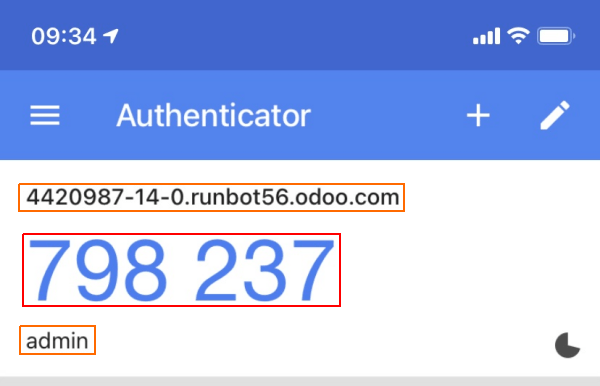
Enter the code into the Verification Code field, then click Activate.
- menu
- Avatar ‣ My Profile ‣ Account Security tab
- shows
- The Account Security tab after activation: the toggle is on, and the "Trusted Devices" list is empty.
- highlight
- The enabled toggle.
- module
- auth_totp
- notes
- English UI, crop to the relevant area.
Logging in
To confirm 2FA setup is complete, log out of Odoo.
On the login page, input the username and password, then click Log in. On the Two-factor Authentication page, input the code provided by the chosen authenticator in the Authentication Code field, then click Log in.
- menu
- (login page)
- shows
- The "Two-factor Authentication" login step with the Authentication Code field, the "Don't ask again on this device" checkbox and the Log in button.
- highlight
- The Authentication Code field.
- module
- auth_totp
- notes
- English UI, crop to the login box.
Danger
If a user loses access to their authenticator, an administrator must deactivate 2FA on the account before the user can log in. To do so, open the user’s form in , go to the Account Security tab, and switch off the Two-factor Authentication toggle.
Trusted devices
On the 2FA login page, tick Don’t ask again on this device to skip the code on that browser for a while. The devices trusted this way are listed in the Trusted Devices section of the Account Security tab of the user’s preferences. Click the (delete) icon next to a device to revoke it, or Revoke All to revoke all of them.
Enforce two-factor authentication
To enforce the use of 2FA for all users, first navigate to . Remove the Apps filter from the Search… bar, then search for 2FA
by mail.
Click Install on the Kanban card for the 2FA by mail module.
- menu
- Apps (Apps filter removed)
- shows
- The Apps dashboard searched for "2FA by mail", showing the module card with the Activate button.
- highlight
- The module card.
- module
- auth_totp_mail_enforce
- notes
- English UI, crop to the relevant area.
After installation is complete, go to Settings app: Permissions. Tick the checkbox labeled, Enforce two-factor authentication. Then, use the radio buttons to choose whether to apply this setting to Employees only, or All users.
Note
Selecting All users applies the setting to portal users, in addition to employees.
- menu
- Settings ‣ General Settings ‣ Permissions
- shows
- The "Enforce two-factor authentication" setting ticked with the "Employees only" / "All users" radio buttons.
- highlight
- The setting block.
- module
- auth_totp_mail_enforce
- notes
- English UI, crop to the relevant area.
Click Save to commit any unsaved changes.
Users who have not configured an authenticator app then receive a verification code by email when logging in.