
Spain
Configuration
Install the 🇪🇸 Spanish fiscal localization package to get all the default accounting features of the Spanish localization.
Several Spanish charts of accounts (PGCE) are pre-configured:
Spain - SMEs (2008);
Spain - Complete (2008);
Spain - Non-profit entities (2008);
Spain - Cooperatives - SMEs (2008);
Spain - Cooperatives - Complete (2008);
the equivalent charts for the Canary Islands.
The company setup wizard can load the chart for you.
To select the one to use, go to and select a package in the Fiscal Localization section.
Warning
You can only change the accounting package as long as you have not created any accounting entry.
Spanish setup and supported module combination
The Spanish localization of eYssen is a hybrid localization: it combines the standard Odoo modules
(charts of accounts, Veri*Factu, Facturae, TicketBAI, Point of Sale) with the Spanish community
modules (OCA) for everything that the standard localization lacks (AEAT tax declarations, VAT books,
SII, Spanish contact and bank data, and others). The Spain - Accounting (PGCE 2008) module
(l10n_es) sets this combination up and keeps it consistent:
the Spanish company setup wizard guides you through the configuration of a Spanish company;
the fiscal profile installs the modules that a self-employed person or a company needs;
the module choice refuses the modules that duplicate a supported one.
Note
Earlier versions had a separate Spain - Base Layer module (l10n_es_base_layer). Its features
are now part of l10n_es; there is nothing else to install. If a page or a message still
mentions the base layer, it refers to this section.
Install the 🇪🇸 Spanish fiscal localization package as described above. Then set up the company with the wizard, or set the fiscal profile directly in the settings. The Spain menu is available to accounting administrators.
Company setup wizard
The wizard configures a Spanish company step by step and records what it did. Use it for a new company, or to review the configuration of an existing one. The wizard is only available for companies whose country is Spain.
To open it, go to , or to , scroll to the Spain section, and click Open the setup wizard.
- menu
- Accounting ‣ Configuration ‣ Spain ‣ Company setup
- shows
- The "Spain: company setup" dialog at the step "2. Fiscal profile", with the progress bar (1. Company … Done), the "Fiscal profile" radio buttons, the "SII taxpayer" checkbox, the list of modules to install and the "Save and continue" button.
- highlight
- The progress bar at the top and the "Save and continue" button.
- data
- Demo company "YourCompany ES", wizard reopened after step 1.
- module
- l10n_es
- notes
- English UI, light theme, 1440px width, crop to the dialog.
Click Save and continue to apply a step and go to the next one, Back to go to the previous step, and Continue later to close the wizard. The progress is saved: when you reopen the wizard, it resumes at the step where you stopped. The steps 6. Bank, 7. Certificate and 8. Tax advisor can be skipped with the Skip button.
Step |
What you set |
Good to know |
|---|---|---|
1. Company |
Legal form (Self-employed (autónomo), Limited company (S.L.), Public limited company (S.A.), Joint ownership (C.B.) or Other entity), Name / company name, NIF, the address and the Province. Also Check intra-EU VAT numbers (VIES) (enabled by default) and Spanish language and Madrid time zone. |
The NIF is checked (format and check character) against the legal form: a self-employed person needs a DNI or an NIE; the NIF of an S.L. starts with B, of an S.A. with A, and of a C.B. with E; Other entity cannot use the NIF of a natural person. The NIF is stored as the Tax ID of the company, with the ES prefix. The currency is set to euro if no chart of accounts is loaded yet. |
2. Fiscal profile |
Fiscal profile (Self-employed (autónomo) or Company (S.L., S.A.)), SII taxpayer, and Install the modules of the profile now. |
See Fiscal profile. The self-employed profile is refused for legal forms other than the self-employed person. When you continue, the missing modules are installed, the page reloads and the wizard resumes at the next step. |
3. Tax regime |
Territory, Chart of accounts, VAT regime and, for a self-employed person, IRPF withholding on your invoices (15 %, 7 % (new professional) or No withholding). |
Only Common territory (AEAT) is available: the Canary Islands and the Basque Country are not available yet, and Navarre is not supported. If no chart of accounts is loaded yet, this step loads the one you select (PGC PYMES 2008, PGC 2008 (full), PGC 2008 non-profit entities, or one of the two cooperatives charts); afterwards the field is read-only. The VAT regime can be General regime, Equivalence surcharge (recargo de equivalencia), Agriculture, livestock and fishing (REAGYP), Simplified regime (módulos), General regime with VAT prorate (you enter the VAT prorate (%), greater than 0 and less than 100, applied from 1 January of the current year) or Cash accounting (RECC), see cash accounting regime. The regime is also sent to Veri*Factu as special VAT regime when it is the equivalence surcharge, REAGYP or the simplified regime. |
4. Invoicing mode |
Veri*Factu, SII (immediate supply of information) or Decide later. For Veri*Factu, the Veri*Factu production mode option. |
The step shows from which date Veri*Factu is mandatory for the company: 1 January 2027 for an S.L. or an S.A., and 1 July 2027 for the others. SII taxpayers are exempt. Choosing one mode turns the other off: a company cannot use the SII and Veri*Factu at the same time. The production mode is only available when the production conditions are met; otherwise the company stays in the AEAT test environment, and the step lists what is missing. |
5. Invoice series |
Invoice journal, Invoice series prefix, Separate series for corrective invoices (enabled by default), and optionally Separate series for simplified invoices (tickets) with its prefix. |
The prefix is at most 5 characters (default F). Invoices are numbered per series and year, for example F/2027/00001; corrective invoices use the prefix preceded by R (RF/2027/00001). Once a journal has a posted invoice, its series can no longer be changed. The simplified series creates a sales journal Simplified invoices (default prefix T). |
6. Bank |
IBAN, Bank journal, Bank statements (Norma 43 / CAMT file, Online bank synchronisation or Manual), and, depending on the installed modules, SEPA creditor suffix, Confirming and Issued promissory notes (pagaré). |
The IBAN is validated, and the bank is recognized for CaixaBank, Banco Santander, BBVA and Banco Sabadell. The bank account and the journal are created if needed. The SEPA creditor identifier is computed from the NIF and the three-character suffix agreed with the bank (default 000). Confirming is offered for the banks that have a confirming file format installed, and uses the account 400100 Suppliers, confirming. Issued promissory notes (pagaré) uses an account 401 (trade bills payable). See Promissory notes and confirming. |
7. Certificate |
The AEAT certificate file ( |
The step is shown once the modules of the profile are installed. The wizard shows the holder, the NIF and the expiry date of the certificate, and warns if the certificate belongs to someone other than the company NIF (a representative or adviser certificate only works if authorized at the AEAT) or expires in 30 days or less. Expired certificates are refused. One upload stores the certificate for Veri*Factu and, when installed, for the other AEAT services (SII, check of contacts). A new certificate replaces the previous one. The password is not kept. |
8. Tax advisor |
Tax advisor name and Tax advisor e-mail. |
Creates a user for the tax advisor (gestoría) with accounting access rights, or gives the access to an existing user with that e-mail, and sends an invitation e-mail. If the e-mail cannot be sent, the user is created anyway. If no contact e-mail of the AEAT declarations is set yet, this e-mail is used. |
9. AEAT declarations |
AEAT journal, VAT counterpart account, Withholding counterpart account, Filing frequency (Quarterly or Monthly) and the contact name, phone and e-mail. |
Shown once the AEAT modules of the profile are installed. These are the default values of the declarations, see Configuration. |
Done |
A checklist of what is configured: NIF, logo, fiscal profile and its modules, chart of accounts, invoicing mode, bank account, AEAT certificate, tax advisor, AEAT journal. |
Click Create my first invoice or Finish. Items marked with [ ] are still to do. |
Every step that you apply or skip is written to the setup log, available in : date, user, step, action (Applied, Skipped or Finished) and a summary of the values set.
Tip
You do not have to use the wizard. Every value it sets can also be set in the Accounting settings, on the journals and on the company form.
Fiscal profile
The fiscal profile installs, in one step, the tax declarations, the books and the banking modules that fit the taxpayer. Set it in , Spain section, Fiscal profile setting (or in step 2. Fiscal profile of the wizard):
Self-employed (autónomo): for a natural person.
Company (S.L., S.A.): for a legal entity.
SII Taxpayer: adds the SII to the profile. Enable it for companies with a turnover above 6 M€, registered in the monthly VAT refund register (REDEME), members of a VAT group, or that opted voluntarily for the SII. SII taxpayers are exempt from Veri*Factu.
When you change the profile, a message below the setting lists the modules that will be installed. Click Save to install them; the page reloads once the installation is done. Saving the settings again without changing the profile installs nothing.
- menu
- Accounting ‣ Configuration ‣ Settings ‣ Spain
- shows
- The "Spain" section of the Accounting settings with the "Fiscal profile" set to "Company (S.L., S.A.)", the "SII Taxpayer" checkbox and the orange "Installed when saving" list of modules.
- highlight
- The "Fiscal profile" setting and the list of modules.
- data
- Demo company "YourCompany ES", profile just changed, not yet saved.
- module
- l10n_es
- notes
- English UI, light theme, 1440px width, crop to the "Spain" section.
Both profiles install the following modules:
Group |
Modules |
|---|---|
AEAT framework |
AEAT Base (tax maps, declaration records and export of the files), and the check of the contacts against the AEAT census. |
Contacts and banks |
Spanish data of contacts and banks, and Spanish provinces and ZIP codes (see Contacts, banks and VAT numbers). |
Declarations |
Modelos 303, 390, 111, 115, 180, 190, 347, 349 and 369. See AEAT tax declarations. |
Books and reports |
Libros registro del IVA y del IRPF (VAT and IRPF books), and the MIS Builder templates of the Spanish accounting reports (balance sheet, profit and loss). |
One-Stop-Shop (OSS) |
The OSS extensions of the modelos 303 and 390 and of the VAT book. |
Veri*Factu |
Spain - Veri*Factu. Installing it does not enable it, see Veri*Factu. |
On top of that, each profile adds:
Profile |
Additional modules |
|---|---|
Self-employed (autónomo) |
Modelo 130 (AEAT modelo 130) and the Spanish Norma 43 bank statement import. |
Company (S.L., S.A.) |
Modelos 123, 193, 216, 296 and 202; the VAT prorate (Prorrata de IVA) with its extensions of the modelos 303 and 390; the mercantile registry data of contacts (Partner Mercantil); the Norma 43 bank statement import; SEPA direct debit and credit transfer, payment order returns and the import of SEPA return reports (ISO 20022). |
SII Taxpayer (option, both profiles) |
The community Suministro Inmediato de Información en el IVA module and its OSS, invoice matching and simplified invoice summary extensions, and the links between corrective invoices and their originals. See SII (Suministro Inmediato de Información). |
The modelos 190 and 180 are the annual summaries of the modelos 111 and 115; the modelos 193 and 296 are the annual summaries of the modelos 123 and 216. The modelo 202 is the instalment payment of the corporate income tax. Other declarations are separate modules that you can install from the Apps menu. The details of each declaration are in AEAT tax declarations.
The Spain - Fixed Assets module is installed with the profile as well, when it is available on the server.
Note
If a module of the profile is not available on the server, saving the profile fails with a message that lists the missing modules. Ask your system administrator to add them.
Contacts, banks and VAT numbers
The fiscal profile also installs these features:
The Trade name of contacts. Contacts can also be searched by it.
The Spanish bank directory. After the installation, the Import spanish bank data configuration wizard is offered: click Import from Internet (Bank of Spain, needs the xlrd Python library) or Import from Local File, or Skip.
The Spanish provinces, municipalities and ZIP codes, used to fill in the city and the province from the ZIP code.
The check of the identification data of contacts against the AEAT census: click Check Partner Data in the AEAT tab of a contact. To check contacts automatically when they are created or modified, enable Verify Partner Data using AEAT Census in the Accounting settings. The check uses the AEAT certificate.
The company setup wizard sets the Verify VAT Numbers option of the company (VIES validation of intra-EU VAT numbers) from Check intra-EU VAT numbers (VIES) in step 1, which is enabled by default. Without the wizard, set the option in the Accounting settings.
Supported module combination
For several features, an alternative from the community localization (OCA) or from the standard Odoo localization exists, but only one of them is supported. Odoo refuses to install the alternative when the supported module is installed, and the other way round.
Feature |
Supported module |
Alternative that is refused |
|---|---|---|
Veri*Factu |
Spain - Veri*Factu (and Spain - Veri*Factu for Point of Sale) |
The community Veri*Factu module |
Facturae and FACe |
Spain - Facturae EDI |
The community Facturae and FACe modules |
TicketBAI |
Spain - TicketBAI |
The community TicketBAI modules (API, Batuz, Point of Sale) |
Point of Sale |
Spain - Point of Sale |
The community Spanish Point of Sale modules |
SII |
Suministro Inmediato de Información en el IVA (community, on top of AEAT Base) |
Spain - SII EDI Suministro de Libros |
Modelo 130 |
AEAT modelo 130 (community) |
Spain - Modelo 130 Tax report |
EU One-Stop-Shop (OSS) |
L10n EU OSS OCA, used by the OSS versions of the AEAT declarations |
EU One Stop Shop (OSS) and, as it depends on it, the Hungarian OSS bridge |
Fixed assets |
The community fixed asset modules (Assets Management and its Spanish version) |
The community Veri*Factu, Facturae, TicketBAI and Point of Sale modules, and the community Spanish fixed asset module, are refused as long as Spain - Accounting (PGCE 2008) is installed. The other alternatives are refused only once the supported module of the pair (AEAT Base, L10n EU OSS OCA or Spain - Fixed Assets) is installed: the standard OSS module, for example, remains available for a Hungarian company that does not use the Spanish OSS. The refusal applies to installations from the Apps menu and from the command line. It shows the message The Spanish localisation supports one module of each of these pairs only or the message that Odoo shows for incompatible modules.
Warning
If an alternative module is already installed, uninstall it before installing the supported one. Ask your system administrator before uninstalling a module, as its data is deleted. If a database already contains both modules of a pair, Odoo does not block other installations, but it writes a warning in the server log when one of them is updated.
Promissory notes and confirming
A vendor bill that is settled with a promissory note (pagaré) or a confirming remittance is not paid until the bank debits the amount (Código Civil art. 1170). In Spanish companies, the bill therefore stays In Payment while the payment is registered on a payable account, such as the account 401 of the promissory notes or the account 400100 of the confirming, and it is not reconciled with the bank statement line. It becomes Paid when you reconcile the bank debit.
The bank step of the setup wizard sets up the payment method and the account of the bank journal for you.
Chart of accounts
You can reach the Chart of Accounts by going to .
Tip
When a new database is created for a Spanish company, Spain - SMEs (2008) is installed by default.
Taxes
Default Spain-specific taxes are created automatically when the Spanish - Accounting (PGCE 2008) (l10n_es) module is installed. Each tax is mapped to the boxes of the Spanish Modelo 303 VAT return, which can be reviewed in the tax report.
Tip
With the Spanish setup (fiscal profile), the AEAT tax declarations (modelos 303, 390, 111, 115, 347, 349, and others), the VAT books, and the official PGC annual accounts are prepared in the Accounting app. See AEAT tax declarations.
VAT regime
The VAT regime of the company is set in , Spain section (or in step 3. Tax regime of the company setup wizard). Of the available regimes, only the cash accounting regime (RECC) changes how the taxes of the invoices are chosen: with it, the domestic VAT of sales and purchases is due on payment. See Cash accounting regime (RECC) in Spain.
SII (Suministro Inmediato de Información)
The Spain - SII EDI Suministro de Libros (l10n_es_edi_sii) module sends the VAT information of
customer invoices and vendor bills to the SII (Llevanza de libros registro) of the AEAT or of the
regional tax agencies. It is mandatory for companies with a turnover above 6 M€ and optional for
the others.
Important
This module cannot be installed together with AEAT Base (l10n_es_aeat), which the
fiscal profile installs. With the fiscal profile
(option SII Taxpayer), the SII is handled by the community Suministro Inmediato de
Información en el IVA module, see SII (Suministro Inmediato de Información). Use the module described in this section
only on databases without the Spanish AEAT modules.
Configuration
Install the Spain - SII EDI Suministro de Libros (l10n_es_edi_sii) module.
Go to , scroll to the Registro de Libros connection SII setting and select the Tax Agency for SII (Agencia Tributaria española, Hacienda Foral de Gipuzkoa, Hacienda Foral de Bizkaia, or Hacienda Foral de Navarra).
Click the Certificate (SII) link to upload the company’s digital certificate (file and password) used to sign the requests.
Keep SII Test Mode enabled while testing; disable it to send the data to the production web service.
On each sales and purchase journal that must report to the SII, enable the SII IVA Llevanza de libros registro (ES) format in the Electronic invoicing field of the Advanced Settings tab.
- menu
- Accounting ‣ Configuration ‣ Settings ‣ Registro de Libros connection SII
- shows
- The "Registro de Libros connection SII" setting with the "Certificate (SII)" link, the "Tax Agency for SII" drop-down set to "Agencia Tributaria española" and the "SII Test Mode" checkbox enabled.
- highlight
- The "Tax Agency for SII" field.
- data
- Demo company "YourCompany ES", Spanish localization installed; test certificate.
- module
- l10n_es_edi_sii
- notes
- English UI, light theme, 1440px width; use a throw-away certificate.
Taxes
The Spanish taxes carry a Tax Type (Spain) (Sujeto, Exento, Sujeto ISP, No Sujeto, Retencion, Recargo de Equivalencia, DUA, …), an Exempt Reason (Spain) for exempt taxes (E1 … E6) and the Bien de Inversion flag, which determine how the amounts are reported to the SII. The default taxes are configured; check these fields when creating new taxes.
Sending documents
Once a customer invoice or vendor bill is posted in a journal with the SII format enabled, it is sent to the SII by the scheduled action of the electronic invoicing (or immediately with the Process now link of the blue banner). The status is shown in the Electronic invoicing field; the CSV return code and the acceptance message (or the errors reported by the agency) are logged in the chatter. The Registration Date field of the document (Other Info tab) is the date reported as fecha de registro contable for vendor bills.
Veri*Factu
Note
The Veri*Factu invoicing system used by eYssen is declared to the AEAT by its producer, which issues the declaración responsable (responsible declaration) of each release. The declaration is available inside the application, see Software producer and responsible declaration.
Veri*Factu is an e-Invoicing system used by the Spanish Tax Agency. It is mandatory for most taxpayers in Spain, except for those who use the SII system or are under a regional tax regime (i.e., TicketBai).
Odoo allows invoices and Point of Sale orders to be automatically sent to the tax authorities.
Registration with the AEAT
There is no registration of the company or of the software with the AEAT to start using Veri*Factu. What you need before the configuration is a qualified electronic certificate that the software uses to authenticate itself to the AEAT.
No census declaration. It is not necessary to report in the modelo 036 that the billing records are sent with a Veri*Factu system. The option is made tacitly, by systematically starting to send the billing records to the AEAT. A company can join Veri*Factu whenever it wishes, and stays in this mode at least until the end of the calendar year of the first submission.
No registration of the software. The AEAT does not keep a register of invoicing software. The producer of the software issues the responsible declaration of each version, and you keep the declarations of the versions you replace or update.
A qualified certificate is always needed, also to test the system. It can be the certificate of the taxpayer, or the certificate of a representative, attorney or social collaborator (for example, a tax advisory firm) who sends the records on the taxpayer’s behalf.
Important
The invoices issued with a Veri*Factu system are real invoices, and their records are sent to the AEAT, also when they are issued only to try the system. Use the test environment for tests: the AEAT requires that the invoices issued by mistake in production mode are cancelled.
Deadlines
The Spanish invoicing systems must comply with the regulation (Royal Decree 1007/2023) before 1 January 2027 for the taxpayers of the Corporate Income Tax (for example, an S.L. or an S.A.), and before 1 July 2027 for the other businesses and professionals (Royal Decree-law 15/2025). Starting earlier is possible.
Obtaining the certificate
The certificates are issued by the certification authorities recognized by the AEAT. The most common one is the FNMT-RCM (Fábrica Nacional de Moneda y Timbre), described below.
Self-employed person (natural person)
Request the certificate online on the website of the FNMT. At the end of the request you receive a request code.
Accredit your identity in person in a registration office, with the request code and your original DNI, NIE or Spanish passport. The offices of the AEAT and of the Social Security require an appointment; the offices of Correos do not. Some issuers accept an online request with an electronic DNI instead.
About an hour after the accreditation, download and install the certificate from the same website. Make a backup copy of the certificate file.
Company (legal entity)
A company needs the Certificado de Representante de Persona Jurídica (certificate of representative of a legal entity), issued by the FNMT for entities whose NIF starts with A, B, C or D. It is requested by the legal or voluntary representative of the company, who accredits identity and representation either in person in a registration office, or online in the Electronic Office of the AEAT (procedure ZZ38 - Solicitud Certificados Electrónicos de Representante). For the online accreditation:
Request the certificate on the website of the FNMT and note the request code.
Sign in to the Electronic Office of the AEAT with a personal certificate, and open the procedure Certificados electrónicos de representante persona jurídica.
Fill in the data of the represented company and of the representative, and enter the request code.
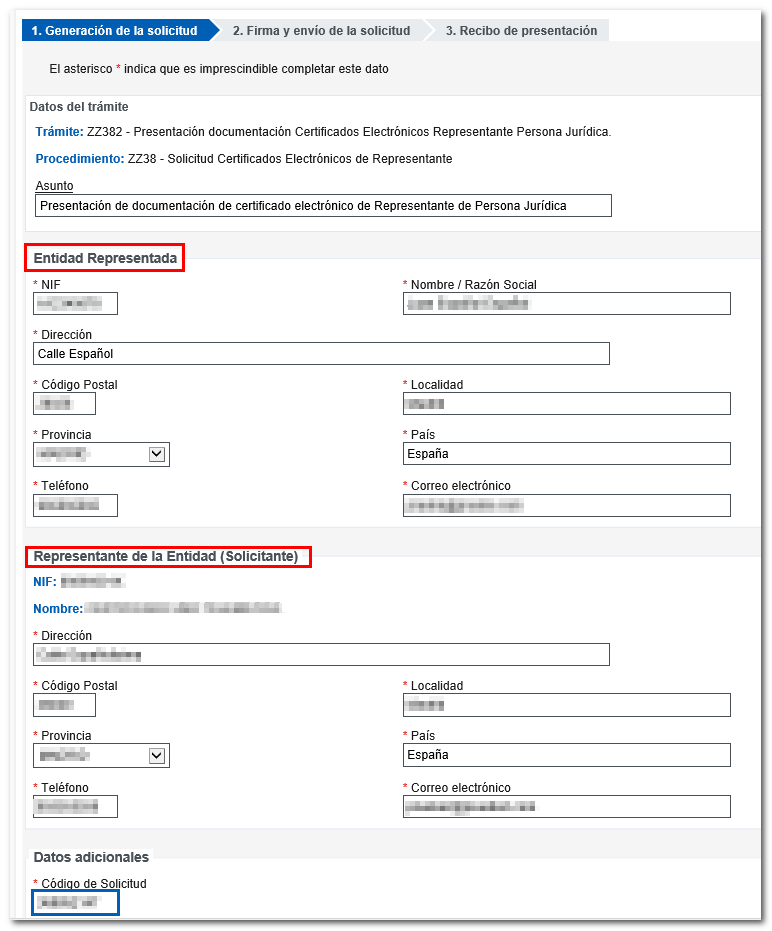
The AEAT form for the presentation of the documents of the certificate.
Attach the required documents. The AEAT asks for a recent (15 days) certificate of the Registro Mercantil about the company, and one of these two: a recent certificate of the Registro Mercantil about the appointment of the representative, or, for a voluntary representative, a notarial power of attorney with a special clause for obtaining the certificate. Joint administrators (administradores mancomunados) also provide the application form signed by all of them.
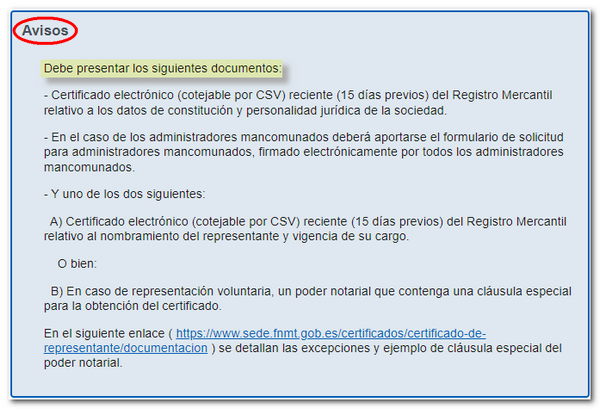
The documents required by the AEAT.
Add the files, click Presentar (submit), and download the receipt. Then continue with the download of the certificate on the website of the FNMT, as above.
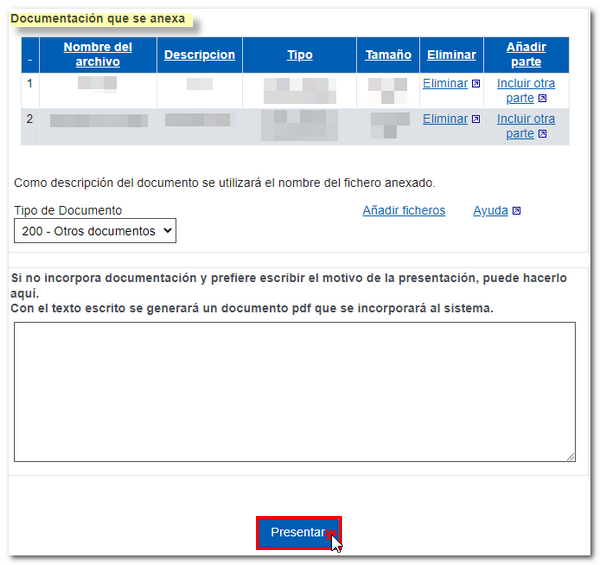
Attaching the documents and submitting them.
Once you have the certificate file (and its password), upload it in eYssen.
Configuration
To enable Veri*Factu, follow these steps:
Open the Settings app to make sure your company’s Country and Tax ID are correctly set in the Companies section.
Install the Spain - Veri*Factu (l10n_es_edi_verifactu) module, if it is not installed yet (the fiscal profile installs it).
Go to , scroll to the Veri*Factu section, check the Enable Veri*Factu option, and click Manage certificates to add a certificate.
In the Certificates for Veri*Factu list view, click New.
Click Upload your file, then select a certificate file and enter the Password needed to open the certificate (if there is one).
Note
At least one certificate has to be uploaded.
By default Veri*Factu is in testing mode. The data is sent to test servers and is not considered official. When official data can be sent to the production servers, go to the Veri*Factu section in the Settings and disable Test Environment. This is only possible when the production conditions are met.
SII taxpayers are exempt from Veri*Factu: do not use both on the same company. With the Spanish setup and the community SII module, enabling both is refused.
Invoices
Once an invoice is confirmed, it can be sent. In the Send window, the Veri*Factu option is available if Veri*Factu has been enabled.
Click Send to generate a JSON file containing the invoice details. This file is stored as a Veri*Factu document. In the Veri*Factu tab, all corresponding documents are listed by their creation date and current status.
The tab shows two statuses, Test registry and Production registry. Each document is marked Test or Production. A record accepted in the test registry is not registered in the production registry. After you disable Test Environment, send the same posted invoice again: the new record goes to the production registry and the test record stays. If the registry currently selected on the company has already accepted the invoice, Send skips it and does not create a second record.
Tip
To download a JSON file, click on its document in the Veri*Factu tab. Then, in the Open: Veri*Factu Documents window, click the link in the JSON field.
Note
The document should be sent to the AEAT immediately. However, it may be delayed due to mandatory waiting periods between submissions required by the AEAT. In such cases, the document is automatically sent the next time a scheduled action runs.
A Veri*Factu QR code appears on the invoice PDF. It points to the verification page of the registry selected on the company. Scan this code to verify that the invoice has been received and recognized by the AEAT.
Cancellation
The cancellation button is on the Veri*Factu tab of the invoice, not in the form header. It is Request Veri*Factu Cancellation. A warning is shown above the button, and a confirmation question is asked before the record is sent.
The cancellation is sent to the AEAT registry currently selected on the company. If the AEAT accepts it, the invoice is cancelled in Odoo as well, and the same invoice number cannot be submitted again.
Point of sale orders
Once an order has been paid, a JSON file containing the order details is generated. This file is stored as a Veri*Factu document.
Go to . In the Orders list view, select the relevant order. In the Veri*Factu tab, all the corresponding documents are listed by their creation date and current status.
Tip
To download a JSON file, click on its document in the Veri*Factu tab. Then, in the Open: Veri*Factu Documents window, click the link in the JSON field.
Note
The document should be sent to the AEAT immediately. However, it may be delayed due to mandatory waiting periods between submissions required by the AEAT. In such cases, the document is automatically sent the next time a scheduled action runs.
If an invoice is generated for an order during the payment process, the Veri*Factu document is created and sent for the invoice instead.
Note
A Veri*Factu QR code appears on the order receipt, even if an invoice is created for the order. Scan this code to verify that the invoice has been received and recognized by the AEAT
Software producer and responsible declaration
The regulation requires the producer of a Veri*Factu system to declare the compliance of the system (declaración responsable) and to make the declaration easy to reach from inside the system. In eYssen, the producer of the fork is built into the release: the data sent to the AEAT in the SistemaInformatico block of each record (producer, system name, software version, installation number) cannot be edited in the interface. The installation number is unique per database and per company.
Important
After cloning a database (for example, to create a test copy), the database UUID must be regenerated. Otherwise the clone reports the same installation numbers as the original.
To read the declaration of the version you are running, use any of these entries:
the user menu (your name at the top right), Veri*Factu Responsible Declaration;
, About section, Veri*Factu setting, Responsible declaration link. The setting also shows the software producer and the version of the software;
, Veri*Factu section, with the same producer, version and Responsible declaration link;
.
- menu
- Accounting ‣ Configuration ‣ Settings ‣ Veri*Factu
- shows
- The "Veri*Factu" section of the Accounting settings with "Enable Veri*Factu", "Manage certificates", the "Test Environment" checkbox, the "Production mode is not available" warning with its list of problems, the "Software producer" and "Version" lines and the "Responsible declaration" link.
- highlight
- The warning, the producer lines and the "Responsible declaration" link.
- data
- Demo company "YourCompany ES", development version (no published declaration).
- module
- l10n_es_edi_verifactu
- notes
- English UI, light theme, 1440px width, crop to the Veri*Factu section.
Tip
When you update to a new version, keep the declaration of the version you replace: the AEAT expects the users of an invoicing system to conserve the declarations of the previous versions.
The declaration opens as a PDF (Declaracion_responsable_VeriFactu), always in Spanish. It is
generated from the declaration file that ships with each release
(declarations/<version>.json in the Veri*Factu module), which lists the producer, the
system, the place and date, and the Veri*Factu modules and their versions. Releases have an
identifier such as 18.0.es.4.
Warning
If there is no published declaration for the version that is running, for example on a development version, the PDF is a draft marked “BORRADOR – SIN VALIDEZ” (draft, without validity) that lists the problems found. Do not give such a draft to customers or to the tax agency.
Production mode
The Test Environment option of the Veri*Factu section of the Accounting settings is enabled by default: the records are sent to the AEAT test servers. The production mode (sending real records to the AEAT) is only allowed when all of these conditions are met:
the producer data is complete;
the running code is an ES release (identifier
18.0.es.N), not a development version;the responsible declaration of the running version exists and matches the data that is sent to the AEAT.
As long as a condition is not met:
the Test Environment option is read-only and a warning, Production mode is not available, lists the problems below the option. Records are still sent to the test servers, with the data shown in the section;
Odoo refuses to generate or send production records, with the message Veri*Factu production submission is blocked until the software producer data is complete followed by the list of problems;
accounting managers see a warning in the pending records indicator.
Note
A company that already sent production records with an earlier version is not switched back to the test environment when the module is upgraded, but its records are not sent until the conditions above are met. A warning is written in the server log.
Pending records and submission
A record is generated when an invoice is sent from the Send window or a point of sale order is paid, and it is sent to the AEAT afterwards. The AEAT imposes waiting times between submissions, and a submission can fail when the AEAT or the network is unavailable. A record that is not sent yet is pending.
A scheduled action, Veri*Factu: Submit / Cancel Records, retries the pending records every hour. On databases that were installed with an earlier version, the upgrade sets the hourly interval.
A paper plane icon in the top bar (systray) shows the number of pending records on a red badge, for the users of the companies that have Billing access rights. It is refreshed every five minutes and is only shown when records are pending or a warning exists. Hover over it to see the details. Click it to open the list Veri*Factu Records Pending Submission (creation date, company, journal entry, document type, chain index and state).
If the production conditions above are not met, accounting managers see the icon turn into a warning triangle. When there are no pending records, clicking it opens the Accounting settings.
The same list is available in .
If a record is sent more than 240 seconds after it was generated (for example because the AEAT was unavailable or Odoo was not running), it is sent flagged as an incident (Incidencia = S) automatically, so that the AEAT does not register it with error 2004. Nothing has to be done.
TicketBAI
Ticket BAI or TBAI is an e-Invoicing system used by the Basque government and its three provincial councils (Álava, Biscay, and Gipuzkoa).
Odoo supports the TicketBAI (TBAI) electronic invoicing format for all three regions of the Basque Country. To enable TicketBAI, set your company’s Country and Tax ID under in the Companies section.
Then, install the module Spain -TicketBAI (l10n_es_edi_TBAI), go to , and select a region in the Spain Localization section’s Tax Agency for TBAI field.
Once a region is selected, click Manage certificates (SII/TicketBAI), then click New, upload the certificate, and enter the password provided by the tax agency.
Warning
If you are testing certificates, enable Test Mode in the Spain Localization section, which can be found under Accounting in the Settings app.
Use case
Once an invoice has been created and confirmed, a TicketBAI banner appears at the top.
- menu
- Accounting ‣ Customers ‣ Invoices ‣ (a sent invoice)
- shows
- A posted invoice of a Basque company with the blue TicketBAI banner at the top stating that the invoice was sent to the tax agency, and the TicketBAI status.
- highlight
- The TicketBAI banner.
- data
- Demo company "YourCompany ES" (Bizkaia), TicketBAI test mode.
- module
- l10n_es_edi_tbai
- notes
- English UI, light theme, 1440px width.
Odoo sends invoices through TicketBAI automatically every 24 hours. However, you can click Process now to send the invoice immediately.
When the invoice is sent, the status of the field Electronic Invoice changes to Sent, and the XML file can be found in the chatter. Under the EDI Documents tab, you can see the traceability of other generated documents related to the invoice (e.g., if the invoice should also be sent through the SII, it will appear here).
Note
The TBAI QR code is displayed on the invoice PDF.
- menu
- Accounting ‣ Customers ‣ Invoices ‣ (a sent invoice) ‣ Print
- shows
- The printed invoice PDF with the TicketBAI QR code and TBAI identifier in the footer.
- highlight
- The QR code.
- data
- Demo company "YourCompany ES" (Bizkaia).
- module
- l10n_es_edi_tbai
- notes
- English UI, light theme, 1440px width.
FACe
FACe is the e-Invoicing platform used by the public administrations in Spain to send electronic invoices.
Before configuring the FACe system, install the Spain - Facturae EDI (l10n_es_edi_facturae) module and other Facturae EDI-related modules.
To configure FACe, follow these steps:
Go to .
Click New to create a new certificate.
Complete the fields, including uploading the file of the Certificate provided by the tax agency and the provided Certificate Password.
Note
If using the Invoicing app instead of Accounting, go to .
Use case
Once you have created an invoice and confirmed it, click Send & Print. Make sure Generate Facturae edi file is enabled, and click Send & Print again. Once the invoice is sent, the generated XML file is available in the chatter.
Warning
The file is NOT automatically sent. You have to send it yourself manually.
Tip
You can send FACe XML files in batch through the governmental portal.
Administrative centers
In order for FACe to work with administrative centers, the invoice must include specific data about the centers.
Note
Make sure to have the Spain - Facturae EDI - Administrative Centers Patch (l10n_es_edi_facturae_adm_centers) module installed.
To add administrative centers, create a new contact to add to the partner company. Select FACe Center as the type, assign one or more role(s) to that contact, and Save. The three roles usually required are:
Órgano gestor: Receptor (Receiver);
Unidad tramitadora: Pagador (Payer);
Oficina contable: Fiscal (Fiscal).
- menu
- Contacts ‣ (a public entity) ‣ Administrative Centers
- shows
- The contact form of a public administration with the "Administrative Centers" section: a center with its "Center Code" (DIR3), role (Órgano gestor / Unidad tramitadora / Oficina contable) and address.
- highlight
- The administrative center lines.
- data
- Public entity "Ayuntamiento de Ejemplo", 3 DIR3 codes.
- module
- l10n_es_edi_facturae
- notes
- English UI, light theme, 1440px width.
Tip
If administrative centers need different Codes per role, you must create different centers for each role.
When an electronic invoice is created using a partner with administrative centers, all administrative centers are included in the invoice.
You can add one contact with multiple roles or multiple contacts with a different role each.